Building an example
The following section shows how to build a simple example application using VS Code.
This example prints messages in the TERMINAL window and flashes an LED on the XK-EVK-XU316 board. On other boards with the xcore.ai device it will print the messages but the LEDs may not flash.
When following through the steps below, some dialogs may pop up and these can be ignored usually.
If the Microsoft CMake Extension is installed, it should be disabled when using the XMOS XTC Tools extension because it conflicts with the XMOS Build System.
Start VS Code
Go to the Start Menu
Find Visual Studio Code and launch it
Go to the Launch Pad
Select Visual Studio Code
Open a shell
In the shell prompt type
$ code
Select the XTC Tools
The XTC Tools version must be selected using the following steps.
Open the XMOS XTC Tools extension view by pressing the XMOS XTC Tools icon in the Activity Bar
Press Select XTC Tools button in the WELCOME view shown in the figure below

A central quick pick menu is shown with the option XTC Tools 15.3.1
Select XTC Tools 15.3.1
Open the XMOS XTC Tools extension view by pressing the XMOS XTC Tools icon in the Activity Bar
Press Select XTC Tools button in the WELCOME view shown in the figure below
A central quick pick menu is shown with the option XTC Tools 15.3.1
Select XTC Tools 15.3.1
Open the XMOS XTC Tools extension view by pressing the XMOS XTC Tools icon in the Activity Bar
Press Select XTC Tools button in the WELCOME view shown in the figure below
A central quick pick menu is shown
Select Browse for XTC Tools Path
A file browser is shown
Use this browser to select the root directory of XTC Tools 15.3.1 installation, which should be named
15.3.1
Download an application
Open the XMOS XTC Tools extension views by pressing the XMOS XTC Tools icon in the Activity Bar as shown in the figure below

Press the Download Example Application button in the GETTING STARTED view
Select the item Making an LED glow with Pulse Density Modulation from the central quick pick menu
A file browser is provided. Select a suitable location. On Windows select a directory with a short path, for example
c:\xmos.A progress dialog will be shown in the bottom right corner
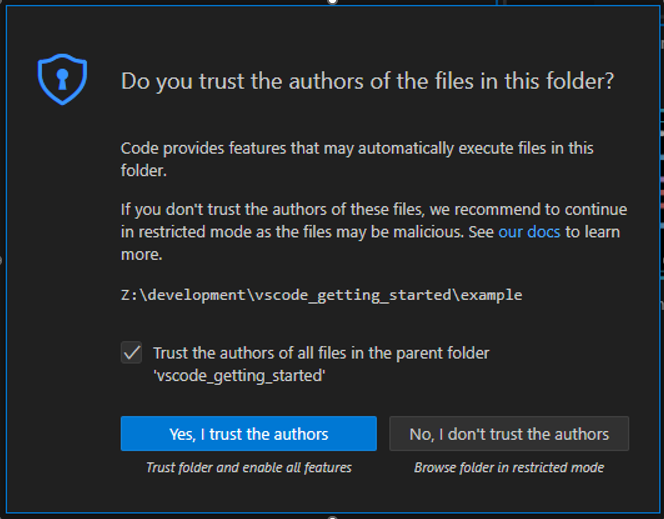
VS Code may present a dialog box Do you trust the authors of the files in this folder. Check the box Trust the authors of all files in the parent folder … and press the button Yes, I trust the authors
Build an application
Open the XMOS XTC Tools extension by pressing the XMOS XTC Tools icon in the Activity Bar
In the XTC TOOLS view, press the Build button as shown in the figure below

The TERMINAL window shows build progress and the message
The terminal process completed successfully.when the build has completed as shown in the figure below
Run an application on a target board
Connect an XMOS XK-EVK-XU316 target board to the host computer as shown in Setup the target board and xTAG. (Other boards with the xcore.ai device may be used to show printed messages, but the LEDs may not change state)
Press the Refresh Devices icon in top-right of the DEVICES view
The xTAG identifier for this board will appear in the DEVICES list
In the XTC TOOLS view, press the Run button
An LED on the target board will alternate from bright to dim
Messages from the target will be printed in the TERMINAL window
Write the application to the flash device on the target board
In the XTC TOOLS view, press the Flash Device button
A progress dialog will be shown in the bottom right corner of the main VS Code window
The TERMINAL window shows the flash writing progress and the message
The terminal process completed successfully.when the flash writing has completedThe target will be reset and an LED on the target board will alternate from bright to dim
Using the TERMINAL
The XTC Tools may be used with a Command Line Interface.
In the XTC TOOLS view, press the Open XTC Terminal button
The environment is set up for the use of the XTC command line tools. See Using the command line tools and Command line tools for further details on the XTC command line tools which can be used in this TERMINAL.